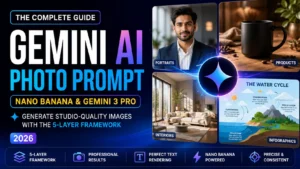
The framework professionals use to direct Gemini 3 like a photographer, not a search engine.
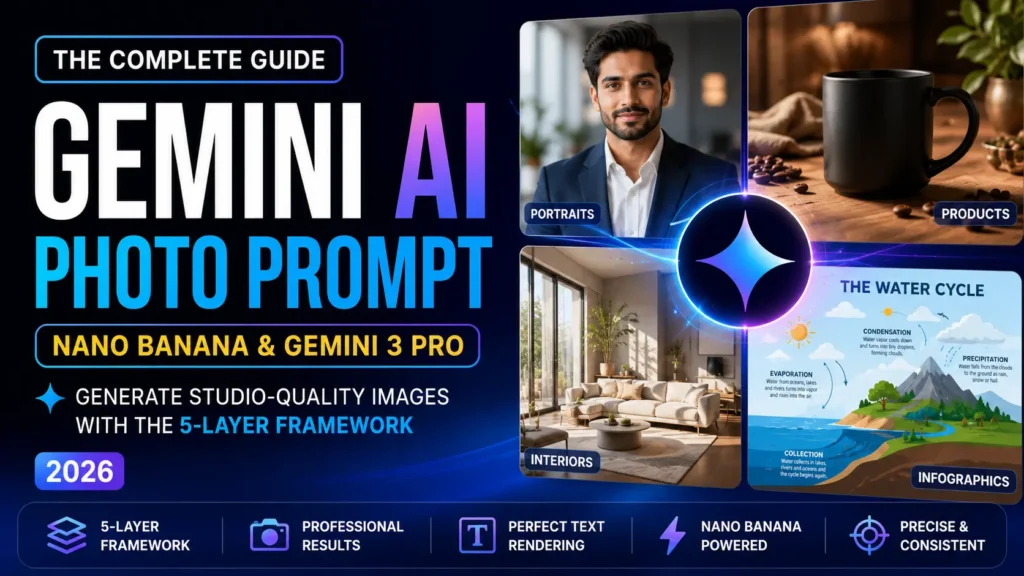
If you’ve wanted gemini ai photo prompt, chances are you’ve already hit the same wall as most people: dozens of listicles with “60 best prompts,” but almost none of them explain why those prompts work, or how to write your own once the trending template stops giving good results.
This guide is different. Instead of handing you a copy-paste list and wishing you luck, we’ll walk through exactly how Gemini’s image models actually “think,” how to structure a prompt so it produces a specific result every time, and how to use this for things that are actually useful — professional photos, product shots for your shop, festival portraits, and more — not just viral Instagram edits.
We’ll use the same Five-Layer Framework from our ChatGPT portrait prompting guide, adapted specifically for how Gemini’s newest models — Nano Banana 2 and Nano Banana Pro — actually process prompts. If you’re new to AI image prompting, you don’t need any design background to follow along. If you’ve already read our Gemini photo editing guide, think of this as the next level: that article was about editing a photo you already have. This one is about directing Gemini to create a scene from your imagination — with or without a reference photo.
What “Gemini AI Photo Prompt” Actually Means Right Now
Here’s where a lot of confusion starts. “Nano Banana” isn’t one thing — it’s become the community nickname for Google’s family of image-generation models built on Gemini 3. When people say “Gemini AI photo prompt” or “Nano Banana prompt” today, they’re usually talking about one of two models:
| Model | Official name | Best for | Speed |
|---|---|---|---|
| Nano Banana 2 | Gemini 3.1 Flash Image | Quick edits, everyday portraits, high-volume generation | Under 2 seconds |
| Nano Banana Pro | Gemini 3 Pro Image | Professional work — text on images, product mockups, multi-image composition, complex scenes | A few seconds longer, but far more accurate |
Both are available for free inside the Gemini app (gemini.google.com or the mobile app) under Tools → Create images, with paid Google One AI plans unlocking higher resolution and more daily generations. Developers and businesses can also access both through Google AI Studio and the Gemini API if they need to automate image generation at scale — useful if you ever want to batch-produce product photos for a shop.
The single biggest upgrade that separates these models from older AI image tools is that they don’t just match keywords to pixels — they actually reason through your prompt before generating. That’s why a well-structured, descriptive prompt now consistently outperforms a pile of keywords like “8K, hyper-realistic, trending, masterpiece.” Gemini doesn’t need convincing adjectives; it needs clear direction, the way you’d brief a photographer.
AI Generating vs AI Editing: Know Which One You’re Actually Doing
This distinction matters more than most guides admit, and it’s the reason a lot of people get frustrated with their results.
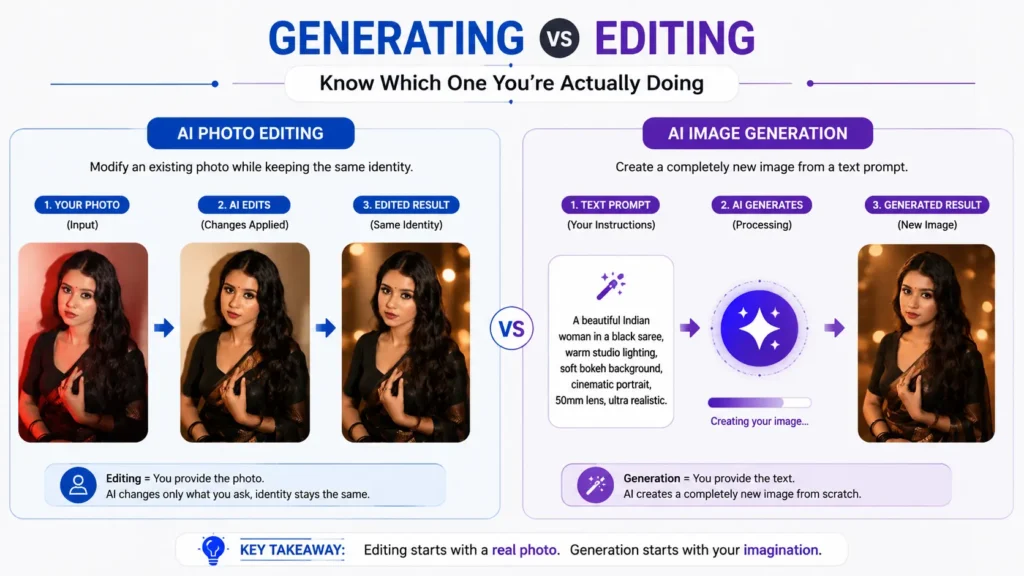
- Editing means you upload a photo of yourself (or a product, or a room) and ask Gemini to change something about it — a new outfit, a new background, a different lighting mood — while keeping your actual face or object recognizable. This is what most “AI saree look” or “LinkedIn headshot from selfie” prompts are doing.
- Generating means you’re not attaching a reference photo at all (or you’re using one only as a loose style guide) and asking Gemini to create an entire scene from a text description — a fictional person, a product mockup that doesn’t exist yet, an infographic, a concept illustration.
Both use the same underlying models, but they need different prompt habits:
- For editing, always open with a line that anchors identity, like “Using the uploaded photo, keep the person’s face, skin tone, and facial structure exactly the same, and change only the following…” — otherwise the model has more creative freedom than you want.
- For generating, you have to fully describe the subject, since there’s no photo to anchor to. This is where the Five-Layer Framework does the heavy lifting.
Everything below focuses on the generating side, since that’s the part most prompt lists skip entirely — and it’s also where Gemini 3’s biggest strength shows up: real-world knowledge and reasoning, which lets it build accurate scenes, legible text, and realistic object relationships from a description alone.
The Five-Layer Framework, Adapted for AI Generation
Our Five-Layer Framework has worked well across our portrait and wedding photography guides because it forces you to think like a photographer giving instructions to a crew, not like someone typing search terms. For prompts generated from scratch, we add one extra layer at the front — because when there’s no photo to anchor to, the model needs to know exactly who it’s creating before anything else.
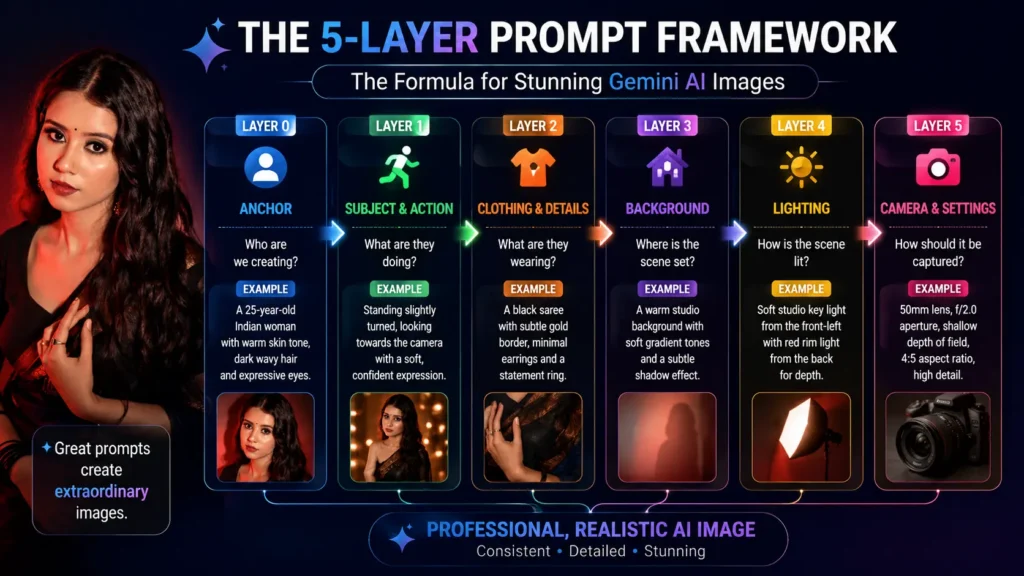
Layer 0 — Anchor (only for generation, skip this for editing) State clearly that this is a new subject being created, and how specific to be about their appearance. Example: “A 28-year-old Indian woman with a warm skin tone, shoulder-length wavy black hair, and a soft, confident expression.” Vague subjects produce generic, forgettable faces. Specific subjects produce images that look intentional.
Layer 1 — Subject & Action What are they doing, and how? Standing, laughing, walking, holding something, mid-conversation. A static “posing for camera” subject almost always looks flatter than one caught in a small moment of motion or expression.
Layer 2 — Clothing & Details Fabric, color, fit, accessories. “A tailored navy blazer over a cream silk blouse” produces a completely different (and better) result than “professional clothes.”
Layer 3 — Background & Environment Where does this happen, and what’s around them? Be specific about time of day and setting — “a sunlit home office with a bookshelf softly out of focus” beats “an office.”
Layer 4 — Lighting & Atmosphere This is the layer most people skip, and it’s the one that most changes whether an image looks like a phone photo or a professional shoot. Name the light source and direction: “soft window light from the left, gentle shadows, warm color temperature” or “overcast daylight, even and shadowless.”
Layer 5 — Camera & Technical Specification Even though Gemini isn’t a real camera, describing one gives it a consistent visual language to aim for: lens type, framing, and aspect ratio. “Shot on an 85mm portrait lens, shallow depth of field, shot in 4:5 aspect ratio for Instagram” tells the model exactly how tight the framing should be and how blurred the background should look.
Put together, a full prompt looks like this:
A 32-year-old South Indian man with short black hair and a light beard,
sitting at a wooden desk reviewing notes with a focused, calm expression.
Wearing a fitted charcoal-grey shirt with sleeves rolled to the forearm.
Background is a softly blurred modern office with warm string lights and
a small potted plant. Lighting is soft afternoon window light from the
left, gentle warm tones, minimal shadows. Shot on a 50mm lens, shallow
depth of field, medium close-up framing, 4:5 aspect ratio, photorealistic,
sharp focus on the eyes.
Notice there’s no “8K ultra HD trending on artstation” padding anywhere in there. Nano Banana Pro already assumes high quality — repeating quality keywords doesn’t improve the result, it just wastes your prompt on words the model ignores.
Real-World Prompt Templates You Can Actually Use
These aren’t viral-for-viral’s-sake prompts. Each one below solves a real task people search for — swap in your own details.
1. A Professional Headshot
Useful if you’re building a personal brand, a portfolio site, or need a placeholder headshot before a real photoshoot.
A confident 26-year-old woman with a warm smile, medium-length straight
black hair, wearing a tailored navy blazer over a white shirt. She is
looking directly at the camera with a genuine, approachable expression.
Background is a clean, softly blurred neutral grey studio backdrop.
Lighting is a three-point softbox setup — key light from the front-left,
soft fill light, subtle rim light separating her from the background.
Shot on an 85mm portrait lens at f/1.8, sharp focus on the eyes, square
1:1 aspect ratio, professional corporate headshot style.
2. Product Photography for an Online Shop
If you sell prompt packs, digital art, or physical products on Gumroad, Etsy, or Instagram, this saves an entire product photoshoot.
A minimalist product photo of a matte black ceramic coffee mug on a
warm wooden table, shot from a slight top-down angle. Soft natural
window light from the right side, gentle shadow falling to the left.
Background is softly blurred with a linen napkin and a small sprig of
eucalyptus for texture. Clean, commercial photography style, sharp
focus on the mug's texture and glaze, 1:1 aspect ratio, suitable for
an e-commerce listing.
For a full product line, describe one reference image and then ask Gemini in a follow-up message to “keep the product identical — same shape, same color, same reflections — but place it in [new setting].” This conversational follow-up is far more reliable than writing four separate prompts from scratch, because Nano Banana Pro holds the visual context across the conversation.
3. A Festival or Occasion Portrait
Popular for Diwali, Eid, weddings, and family occasions — and one of the highest-demand categories among Indian users right now.
A 24-year-old woman in an elegant maroon and gold silk saree with
traditional jewelry, standing in a softly lit courtyard decorated with
diyas and marigold garlands in the background, slightly out of focus.
She has a warm, joyful expression, caught mid-laugh. Lighting is warm
golden-hour light mixed with the glow of diyas, casting a soft amber
tone across the scene. Shot on a 50mm lens, medium shot framing,
shallow depth of field, cinematic color grading, 4:5 aspect ratio.
4. An Interior or Real Estate Concept Shot
Useful for interior designers, real estate listings, or home renovation mood boards — before anything is actually built.
A bright, minimalist living room interior with light oak flooring, a
low beige linen sofa, a single large monstera plant, and floor-to-
ceiling windows overlooking a quiet street. Midday natural light
flooding the room, soft shadows, warm neutral color palette.
Architectural photography style, wide-angle lens, eye-level framing,
16:9 aspect ratio, photorealistic rendering.
5. A Data Infographic or Diagram
This is where Nano Banana Pro genuinely does something older tools couldn’t: it can ground text and diagrams in real information instead of producing garbled nonsense text.
A clean, flat-lay infographic on a light grey textured background
explaining the water cycle in four simple steps, arranged left to
right. Use minimalist black arrows to connect each step. Label each
step clearly in a simple sans-serif font: "Evaporation," "Condensation,"
"Precipitation," "Collection." Add a small, simple icon above each
label. Keep the color palette limited to blue, grey, and white.
16:9 aspect ratio, suitable for an educational slide.
If any text comes out misspelled or warped, don’t rewrite the whole prompt — just reply with a targeted correction like “keep everything the same, but fix the spelling of ‘Condensation’ and make the font bolder.” Small, specific follow-ups work far better than starting over.
Nano Banana 2 vs. Nano Banana Pro: Which One Should You Actually Use?
| Situation | Use this model |
|---|---|
| Quick everyday portraits, casual edits, fast iteration | Nano Banana 2 (Flash) |
| Any image containing text, logos, or signage | Nano Banana Pro |
| Product photography with brand consistency across multiple shots | Nano Banana Pro |
| Combining several reference images into one scene | Nano Banana Pro |
| Infographics, diagrams, or anything that needs to be factually accurate | Nano Banana Pro |
| High-volume generation where speed matters more than precision | Nano Banana 2 (Flash) |
In the Gemini app, you’ll usually see this as a model toggle labeled Fast, Thinking, or Pro when you open the image tool — “Thinking” or “Pro” is what enables the deeper reasoning pass that catches logic errors (like a shadow falling the wrong direction, or a hand with the wrong number of fingers) before the final image is produced.
Common Mistakes That Quietly Ruin Your Results
Over-prompting with quality buzzwords. Piling on “8K, ultra HD, masterpiece, trending on artstation” doesn’t push quality higher anymore — these models already assume high fidelity. Every extra buzzword is a wasted opportunity to add a detail that actually shapes the image.
Vague text instructions. Never write “add some text on the sign.” Write exactly what the text should say, in what font style, and where — “the sign reads ‘OPEN’ in bold red block letters, centered.” Vague text requests are the number one cause of garbled, misspelled words in AI images.
Skipping the aspect ratio. If you don’t specify one, you’ll often get a default that doesn’t fit where you actually want to use the image. Always state it — 1:1 for Instagram feed, 4:5 for portrait posts, 9:16 for Stories and Reels, 16:9 for banners and presentations.
Rewriting the entire prompt to fix one small issue. If 90% of an image is right and only the lighting or one detail is off, don’t start over. Use conversational follow-ups — “keep everything the same, just make the lighting warmer” — since the model holds context from the previous generation and this produces far more consistent results than a fresh prompt.
Forgetting to check text and small details before using an image publicly. Even the improved text rendering in Nano Banana Pro can occasionally misspell a word or distort fine details like hands or small text at a distance. Always zoom in and check before you publish or print anything.
Where to Go From Here
Once you’re comfortable with the Five-Layer Framework here, the same structure carries over directly to our ChatGPT portrait prompting guide and our AI wedding photography prompts — the layers stay the same, only the platform-specific details change. Save a version of your best-performing prompt as a template, and you’ll spend far less time rewriting from scratch every time you need a new image.
1. What is a Gemini AI photo prompt?
It’s a written instruction — a description of a subject, scene, or edit — that you give to Google Gemini’s image models (Nano Banana 2 or Nano Banana Pro) so it can either generate a brand-new image from scratch or transform a photo you upload. The more specific the prompt, the more control you have over the final result.
2. Why does Gemini just return my original photo unchanged?
This is one of the most common frustrations, and it almost always comes down to how the prompt is worded. If your prompt leads with phrases like “keep everything the same,” Gemini can treat the whole request as a preservation instruction and barely touch the image. Lead with the change instead — “Restyle this photo into…” or “Transform the background to…” — and add a line like “this is an edit; the lighting and background must visibly change.” If it still passes the image through unchanged, reply with “apply the edit now” as a direct follow-up.
3. Why do my Gemini AI photos have weird hands or extra fingers?
Hands are still one of the hardest things for any AI image model to render correctly, including Nano Banana Pro. Two fixes work well: crop the problem out by requesting a “head and shoulders” or “close-up portrait” framing, or give the hands a specific, logical task to anchor them — “hands wrapped around a ceramic mug” generates far more reliable results than “hands resting.”
4. Why does the text in my image come out misspelled or garbled?
This almost always comes down to vague instructions, not a model limitation. State the exact words, the font style, and the placement — “the sign reads ‘OPEN’ in bold red block letters, centered” — and use Nano Banana Pro rather than the faster model for anything involving legible text. Always zoom in and check spelling before you publish or print an image with text on it.
5. Do I need to upload a photo to use these prompts?
No. Everything in this guide’s prompt templates works purely from a text description. If you want the output to look like a specific real person, upload a reference photo and follow the identity-anchoring approach described in the Generating vs. Editing section above — otherwise Gemini will invent a subject that matches your description, not your face.
6. How do I keep my face and identity consistent across multiple edits?
Always upload a clear, front-facing, well-lit photo to start with, and place your identity instruction — “keep the person’s face, skin tone, and facial structure exactly the same” — at the very beginning of the prompt, not the end. For a series of images, keep this exact phrasing identical every time and only change the scene details around it.
7. Can I use Gemini-generated images commercially?
Generally yes, though commercial usage rights can depend on your specific account and plan, so it’s worth checking Google’s current terms of service before using an image in paid work. Every Gemini-generated image carries an invisible SynthID watermark for transparency; this is standard and doesn’t affect how the image looks or can be used.
8. What’s the actual difference between Nano Banana and Nano Banana Pro?
Nano Banana (and its successor Nano Banana 2) is the fast, default model built for quick everyday edits and high-volume generation. Nano Banana Pro adds a “thinking” step that reasons through your prompt before generating, which makes it noticeably better at legible text, multi-image composition, and factually accurate scenes like diagrams. See the comparison table above for exactly when to switch.