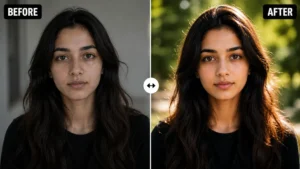
Understand how Gemini interprets your editing instructions
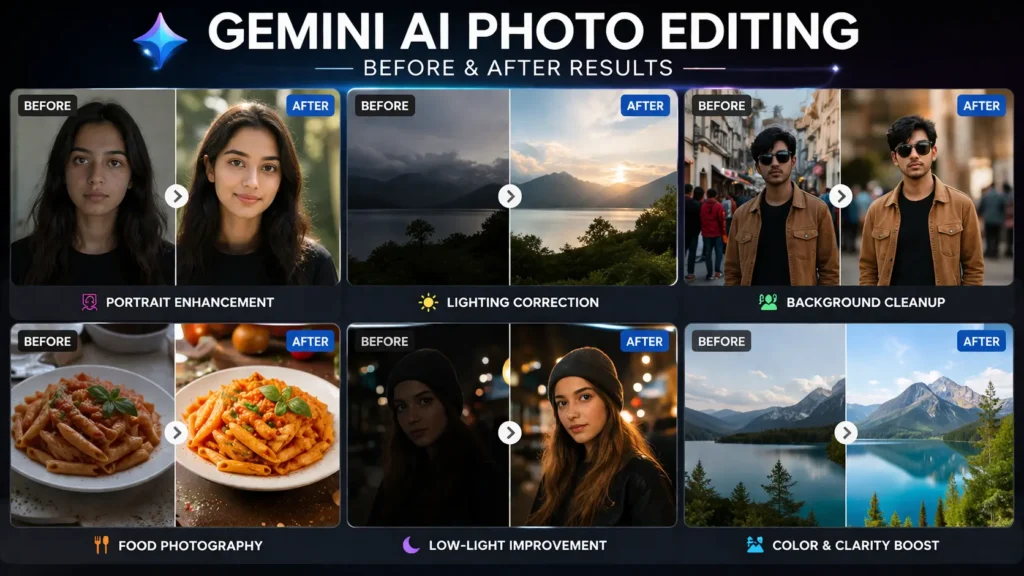
Most people trying to edit photos with Gemini AI run into the same frustration: the output looks processed, not improved.
Skin becomes unnaturally smooth, lighting feels artificial, and instead of enhancing the original image, the system seems to “reinterpret” it in unpredictable ways.
This isn’t because Gemini is weak at editing. It’s because it doesn’t edit images the way traditional tools do.
When you understand that difference—and adjust how you write prompts accordingly—the quality of results changes immediately.
This guide is built to help you do exactly that: not just use prompts, but control outcomes in a way that produces realistic, consistent edits.
Read more:
Gemini AI Photo Editing Prompts for Indian Festive Look
30 Google Gemini AI Photo Editing Prompts for Realistic, Social-Media-Ready Images
Why Editing in Gemini Often Feels Unpredictable
In tools like Lightroom or Photoshop, every adjustment is explicit. If you increase exposure by one stop, the system does exactly that—nothing more, nothing less.
Gemini works differently. It doesn’t “adjust” an image; it reconstructs it based on your instructions.
That means every prompt you write is interpreted as a set of priorities:
- What matters most in the image
- What should be changed
- What should be preserved
- What kind of visual style is acceptable
If your prompt doesn’t define those clearly, Gemini fills in the gaps. And when it guesses, results often feel inconsistent or artificial.
This is why vague instructions like “enhance this image” almost always fail. They describe an intention, but not a method.
You need to move from describing images to directing the edits clearly
The biggest improvement you can make is simple but fundamental:
Stop describing the image. Start directing the edit.
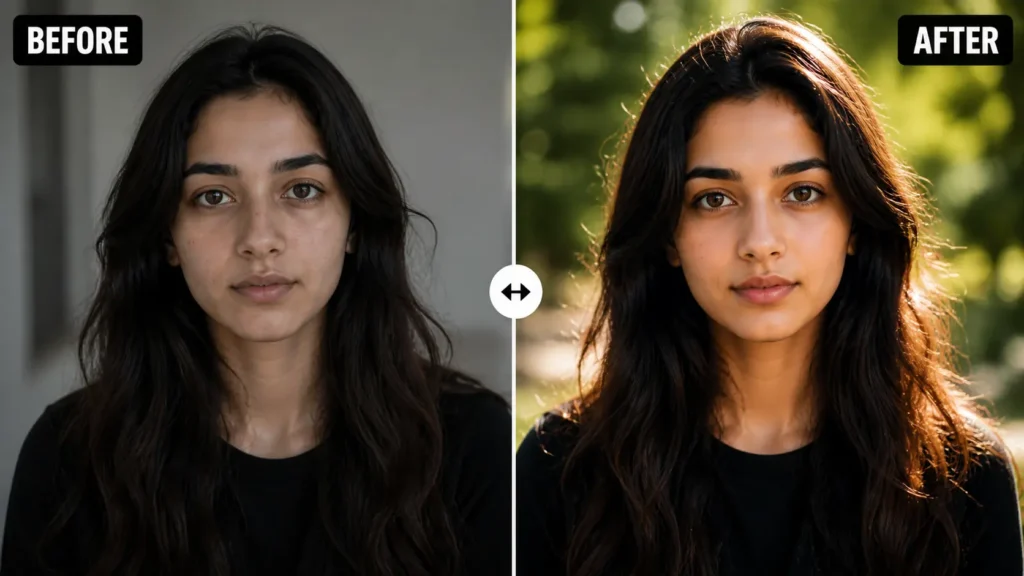
A weak prompt might say:
“make this image better and more HD”
A strong prompt, by contrast, gives structured direction:
“adjust lighting to soft natural tones, correct exposure, improve subject clarity, maintain realistic skin texture, avoid over-processing”
The second version works because it answers three essential questions:
- What should change
- How it should change
- What must not be lost
That last part—what must not be lost—is where most people go wrong.
Controlling realism is the missing piece in most prompts
If you look at poor AI edits, they usually share the same problems:
- overly smooth skin
- unnatural lighting gradients
- exaggerated contrast or color
These issues don’t come from “bad AI.” They come from missing constraints.
When you don’t specify limits, Gemini tends to push enhancements too far.
That’s why phrases like these are not optional—they’re critical:
- maintain natural skin texture
- avoid artificial lighting
- keep realistic shadows
- do not over-smooth
These aren’t stylistic additions. They are control mechanisms that keep the output believable.
Editing step by step gives better results than trying one perfect prompt
Another common mistake is trying to do everything in one instruction.
In real-world editing, no one applies lighting fixes, detail enhancement, and color grading all at once. The process is sequential.
Gemini responds better when you follow the same logic.
For example, instead of one overloaded prompt, you can approach it in stages:
- First, fix the lighting and exposure so the image has a natural base.
- Then, refine the subject—improving sharpness and detail where it matters.
- Finally, apply stylistic adjustments like color grading or contrast.
This approach produces more stable results because each step has a clear focus.
These practical examples show what actually works in real situations
To make this useful, let’s look at common situations and how to handle them with intent—not guesswork.
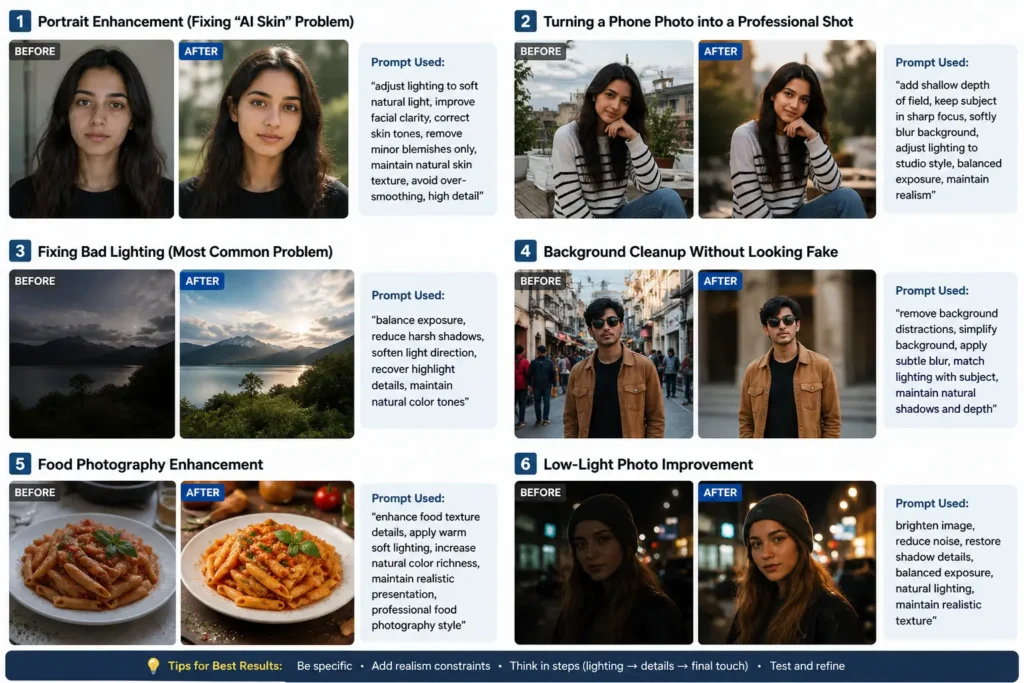
1. Improve a dull portrait without losing natural skin texture
A flat portrait usually suffers from poor lighting and low contrast. The instinct is to “sharpen” it, but that often makes things worse.
A better approach is to fix lighting first:
adjust lighting to soft directional light, balance exposure, enhance facial clarity, maintain natural skin tones, avoid over-smoothing
Here, lighting is treated as the foundation. Detail comes after—not before.
2. Making a Casual Photo Look Professional
Many users want their everyday photos to look like they were taken with a high-end camera.
That effect doesn’t come from sharpness alone. It comes from depth and subject separation.
add shallow depth of field, keep subject in sharp focus, softly blur background, adjust lighting to studio style, maintain realism
The key idea here is separation—guiding the viewer’s attention to the subject.
3. Fixing Harsh or Uneven Lighting
Bad lighting is one of the hardest issues to correct because it affects the entire image.
Instead of forcing brightness, focus on balance:
reduce harsh shadows, soften light direction, balance highlights and midtones, maintain natural color tones
This avoids the common problem where bright areas look blown out while shadows remain muddy.
4. Cleaning Up a Distracting Background
Replacing a background entirely often creates unnatural results. Subtle correction works better:
remove background distractions, simplify scene, match lighting with subject, maintain natural depth and shadows
The emphasis here is consistency. The subject and background should feel like they belong together.
Why Some Results Still Feel “Off”
Even with better prompts, you may still notice occasional inconsistencies.
That’s because Gemini isn’t executing commands—it’s interpreting them.
Two important implications come from this:
- First, small wording changes can produce noticeably different results.
- Second, refinement is part of the process, not a failure of it.
Professionals don’t expect perfection in one pass. They adjust, refine, and iterate.
The same mindset applies here.
What You Should Take Away From This
If there’s one idea to carry forward, it’s this:
Better results don’t come from longer prompts. They come from clearer decisions.
When you:
- define what matters in the image
- control how changes are applied
- and protect realism with constraints
Gemini becomes far more predictable—and far more useful.
Conclusion
Gemini AI photo editing is not about discovering a “magic prompt.” It’s about understanding how to communicate visual intent in a structured way.
Once you move from vague instructions to deliberate direction, the difference in output is immediate. Images look more natural, edits feel intentional, and the process becomes repeatable.
That shift—from prompting casually to editing deliberately—is what separates average results from professional-looking ones.
FAQs
1. What is the best Gemini AI photo editing prompt?
The most effective prompts clearly define lighting, subject focus, and realism constraints rather than using vague instructions like “enhance image.”
2. Why do Gemini AI edits often look unnatural?
Because prompts lack control over lighting and texture, causing the system to over-enhance details.
3. Can Gemini AI produce professional-quality edits?
Yes, but only when prompts are structured as step-by-step editing instructions instead of general descriptions.
4. How can I improve consistency in results?
By breaking edits into stages—first lighting, then detail, then final adjustments—rather than relying on a single prompt.
5. Why are AI-generated hands and faces often distorted?
Hands and faces are complex, and AI models often misinterpret them. This leads to extra fingers or distorted features. Adding detailed descriptions and negative prompts like “bad anatomy” helps reduce these errors.